Shoots and folders
A shoot is one roll of film. You create it when you load the roll, log frames into it as you go, and mark it done when the roll is finished. Folders group shoots together, by trip, project, client, or anything else.
Create a shoot
- On the Shoots tab, press New shoot (the + button on a phone).
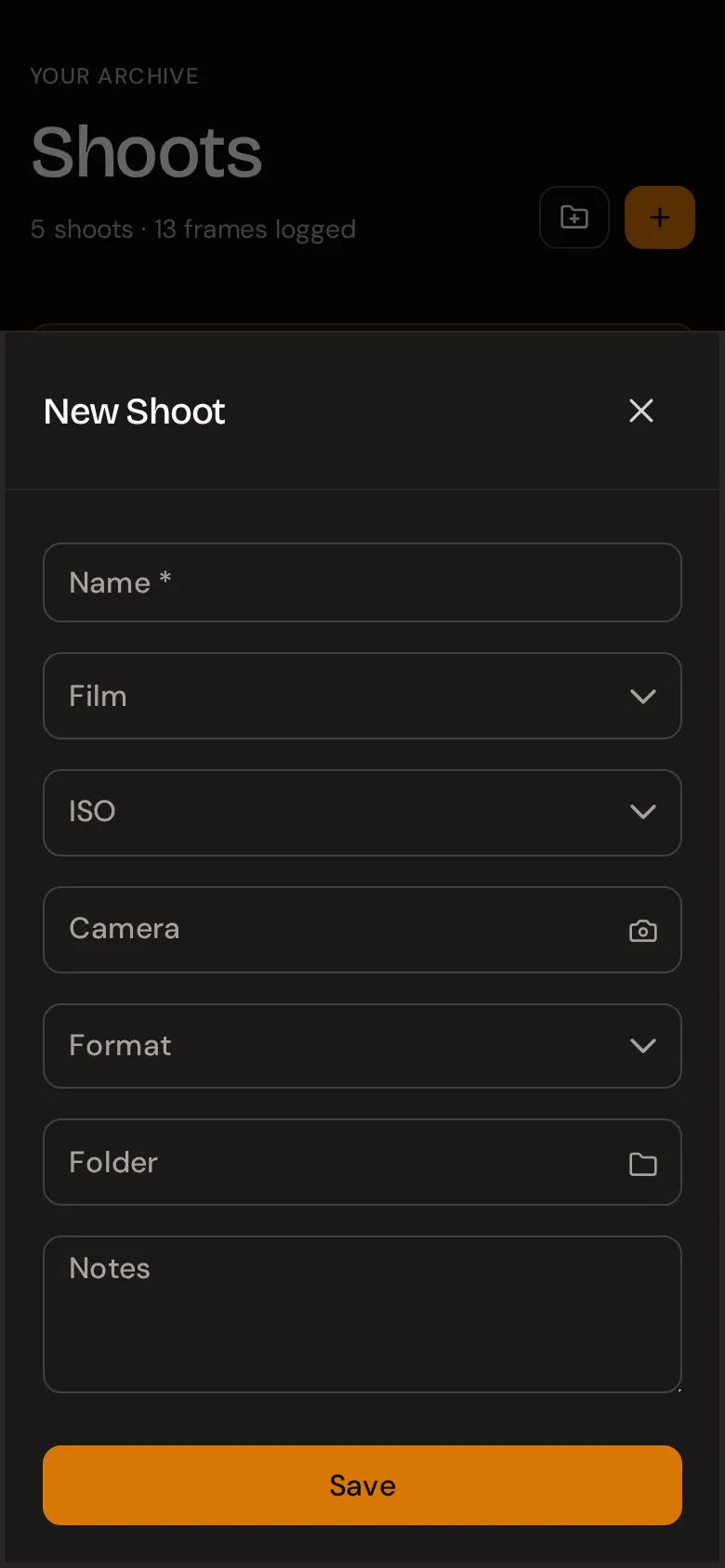
- Fill in the form and press Save.
| Field | Required | Notes |
|---|---|---|
| Name | Yes | Up to 100 characters. For example Alfama at dusk or Roll 42. |
| Film | No | The film stock. Type to search the list. |
| ISO | No | The speed you are rating the film at. Picking a film does not fill this in for you, so you can push or pull. |
| Camera | No | One of your cameras from My cameras. |
| Format | No | 135, 120, 4x5, and so on. |
| Folder | No | Put the shoot straight into a folder. Clear it to leave the shoot unfiled. |
| Notes | No | Anything about the roll as a whole, up to 2000 characters. |
Missing a film, ISO, camera, format, or folder? Every picker has a New … button at the bottom of its list. It opens a small form, and the item you create is selected for you when you save, so you never have to leave the shoot form.
ISO belongs to the shoot, not to each frame: a roll is exposed at one speed, so you set it once.
The shoots list
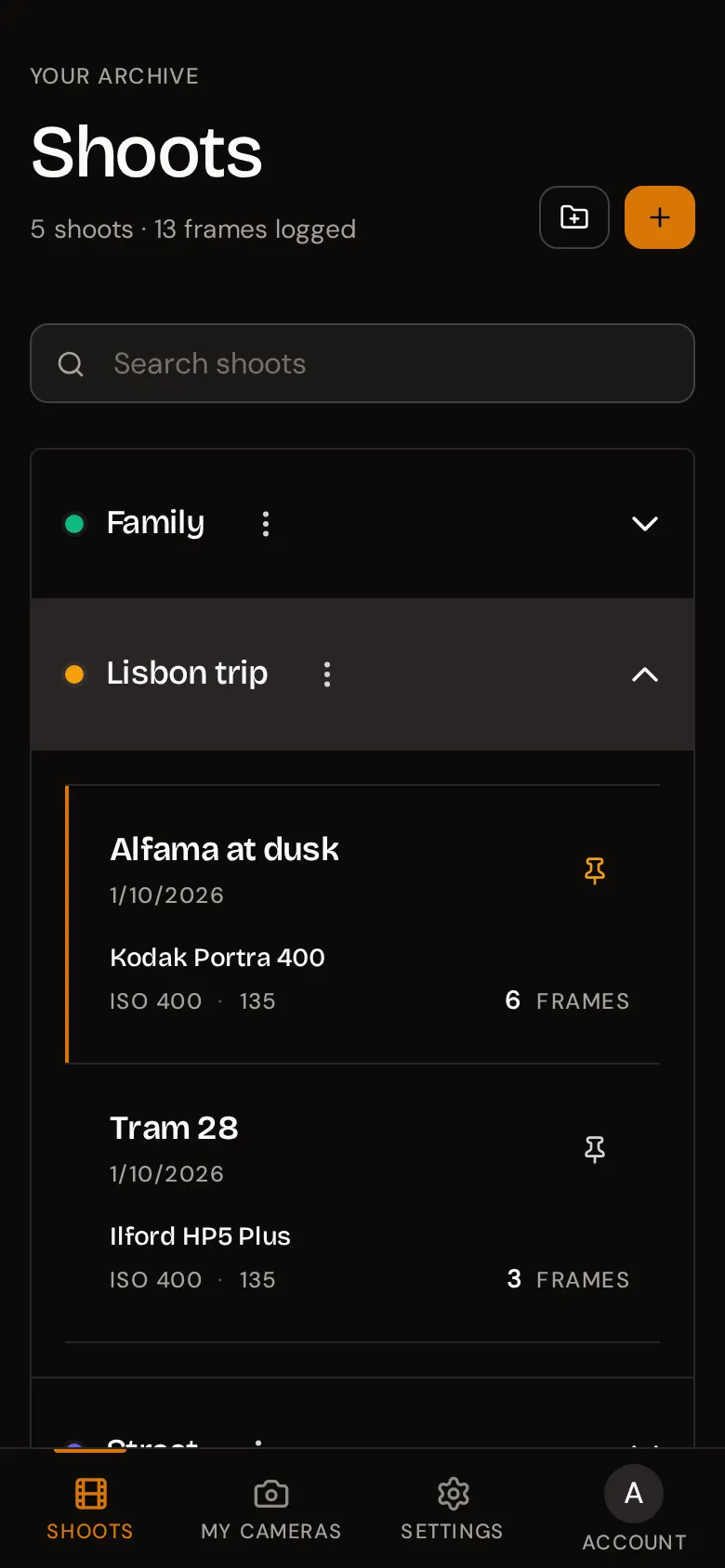
Each card shows the shoot’s name, the date you created it, the film, the ISO and format, and how many frames you have logged. A green check next to the name means the shoot is done. Shoots without a name show as Untitled shoot.
The header shows the totals: for example 5 shoots · 13 frames logged.
Order. Pinned shoots come first, then the most recently created. The same order applies inside each folder. There is no other sort option.
Search. Type in Search shoots to filter by name. The search is instant and ignores upper and lower case. While you search, folders with no matching shoots are hidden.
Pin a shoot
Pinning keeps a shoot at the top of its list, which is handy for the roll that is currently in your camera. Press the pin icon on a shoot card, or the Pin chip on the shoot page. Press it again to unpin.
Mark a shoot done
When a roll is finished, open it and press Mark done. The chip turns into Done and the shoot gets a green check in the list.
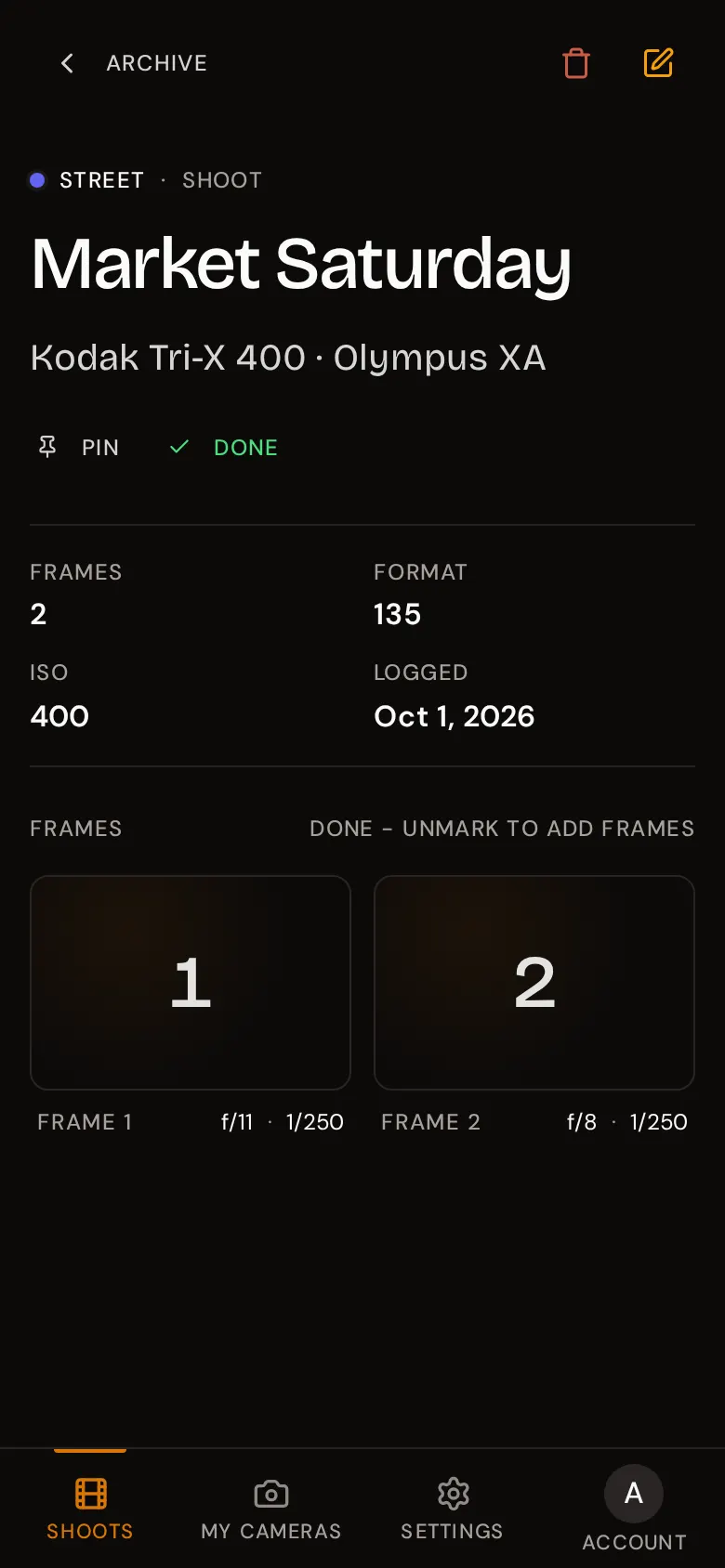
A done shoot is locked against new frames: the Add frame, Clear all, and duplicate buttons are replaced by Done - unmark to add frames. You can still open, edit, and delete existing frames, and edit or delete the shoot itself. Press Done again to unmark it.
The shoot page
Open a shoot from the list to see:
- the folder it belongs to, its name, and its film and camera;
- the Pin and Mark done chips;
- Frames, Format, ISO, and Logged (the date you created it). Anything not set shows a dash;
- your notes for the roll;
- the frames, in order. See Logging frames.
The Archive button at the top takes you back to the list. The pencil icon opens the same form as New shoot so you can change anything.
Delete a shoot
On the shoot page, press the red trash icon and confirm.
Deleting a shoot deletes all of its frames and their locations too. There is no undo. If you might want the data later, export it first.
To keep the shoot but remove all of its frames, use Clear all instead. See Clear all frames.
Folders
Folders are optional, one level deep (no folders inside folders), and a shoot belongs to at most one folder. Shoots not in a folder are listed below the folders.
Create a folder
- On the Shoots tab, press Folder (the folder icon on a phone).
- Enter a Name (up to 100 characters) and pick a Color. The default is indigo.
- Press Save. The new folder opens straight away.
To put a shoot in the folder, edit the shoot and pick the folder in the Folder field.
Using folders
Folders appear as collapsible panels, sorted by name, each with a coloured dot. Tap a folder to open or close it; several can be open at once. An empty folder says No shoots in this folder yet.
Rename, recolour, or delete a folder
Press the three-dot menu next to the folder’s name:
- Edit changes the name or colour.
- Delete removes the folder. Its shoots are kept and move to the unfiled list below the folders. Nothing else is deleted.