Logging frames
A frame is one exposure on a roll. Log it right after you take the shot, while the settings are still in front of you. The wizard is built to be used one-handed, with the camera in the other hand.
Add a frame
Open a shoot and press Add frame (or Add first frame on an empty shoot). The wizard has four steps. The step headers at the top are clickable, so you can go back to any step at any time.
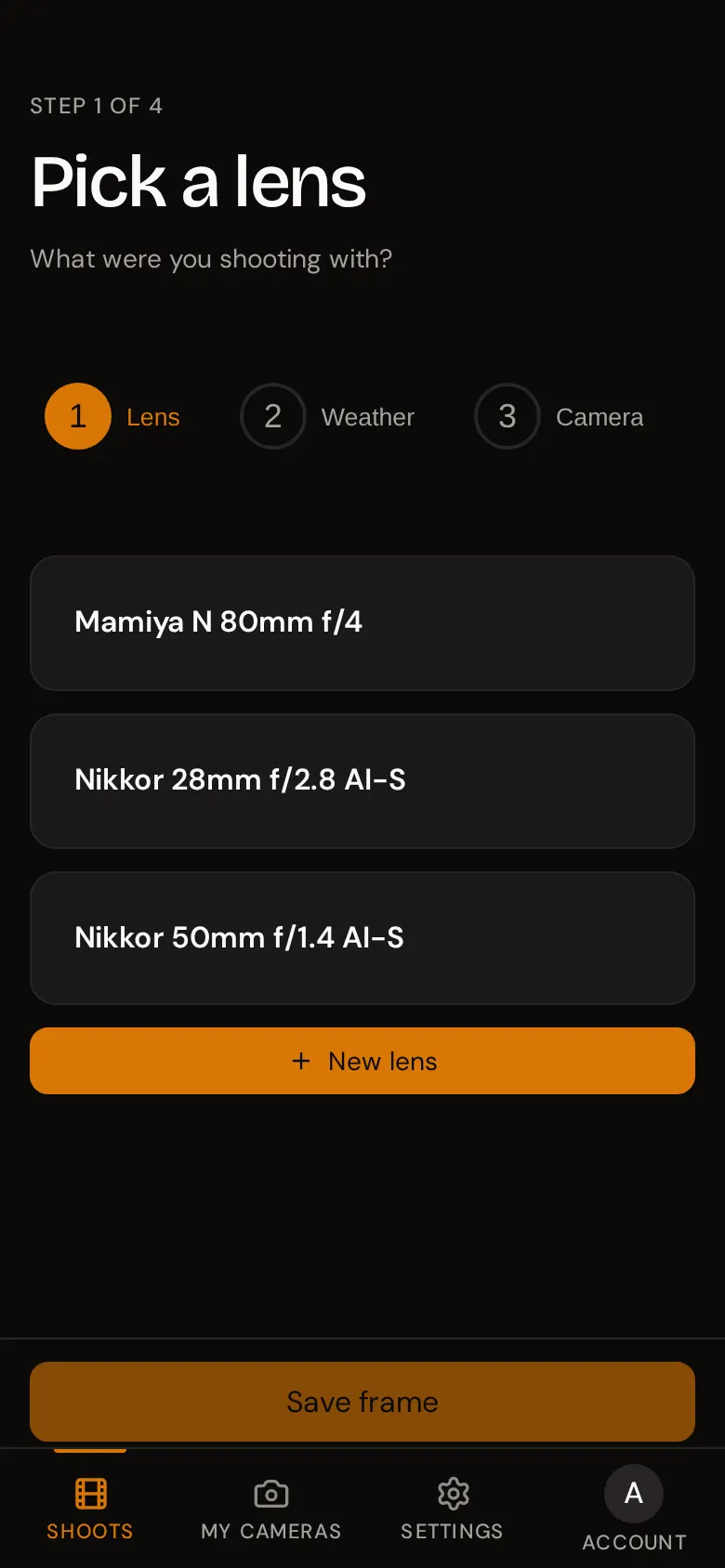
Step 1 - Pick a lens. Tap the lens you used. The wizard moves on to the next step by itself. If the lens isn’t listed, press New lens to add it without leaving the wizard.
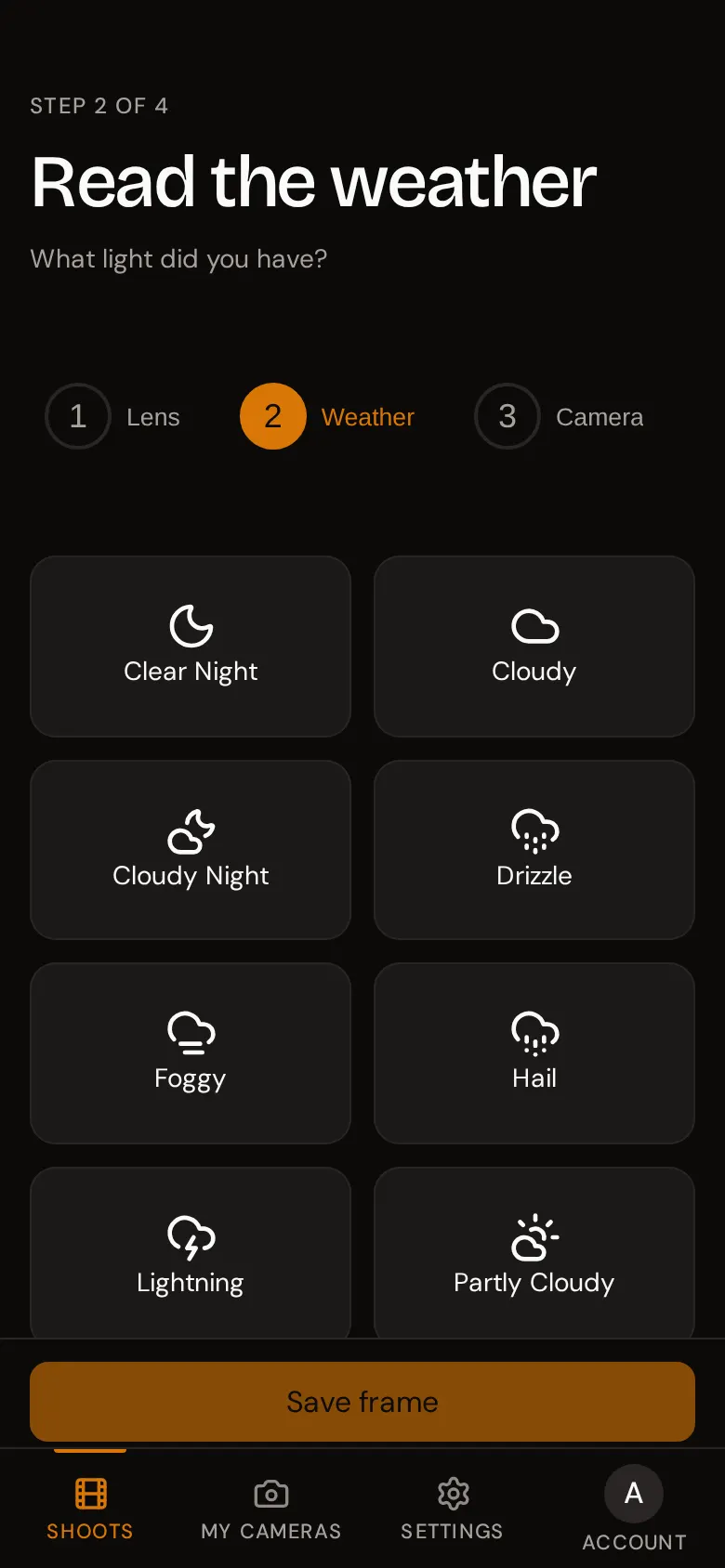
Step 2 - Read the weather. Tap the condition that matches the light: Sunny, Cloudy, Foggy, Clear Night, and so on. The wizard moves on by itself. You can add your own conditions in Settings > Weathers.
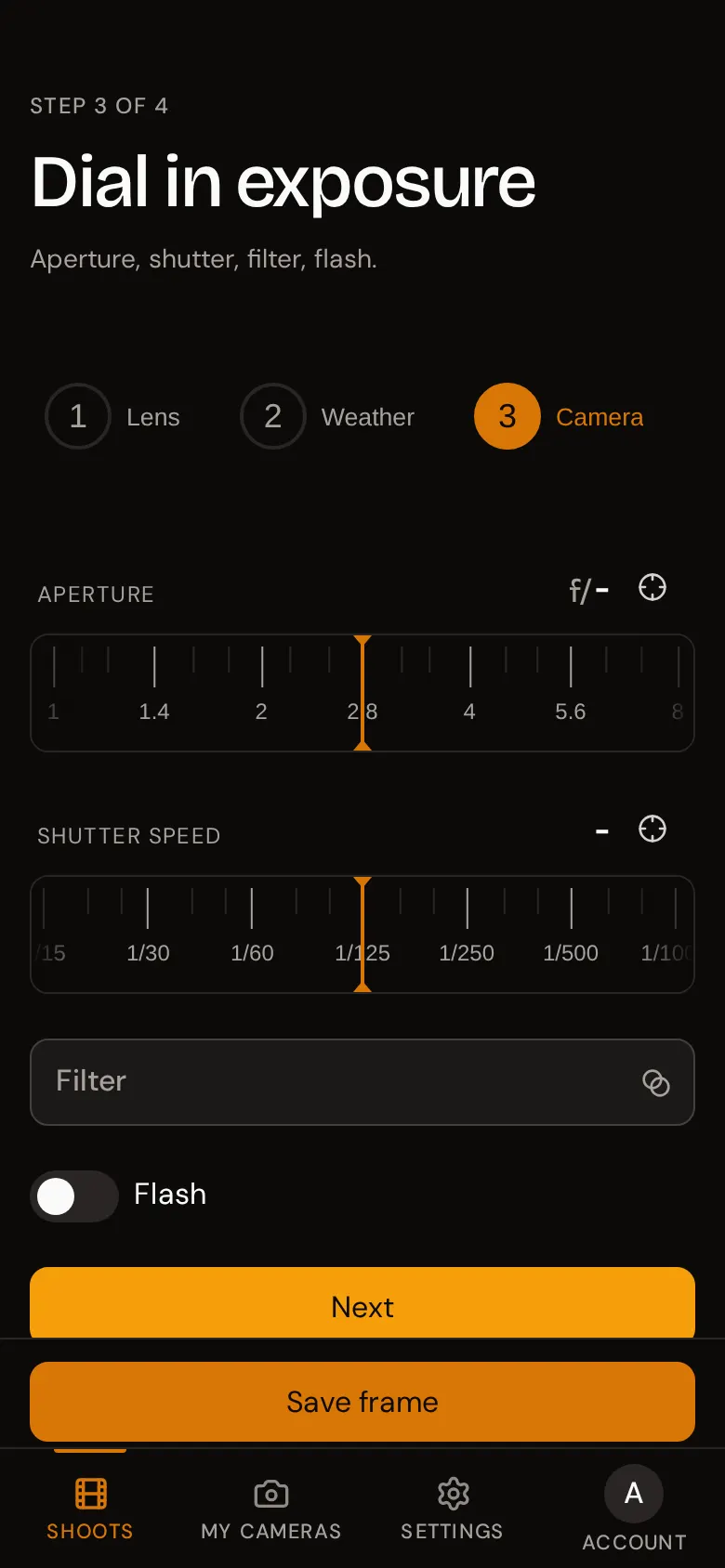
Step 3 - Dial in exposure.
- Aperture and Shutter speed are set with the dials. See Exposure dials for how they work.
- Filter - pick a filter if you had one on the lens, or press New filter.
- Flash - switch it on if the flash fired.
Press Next to continue.
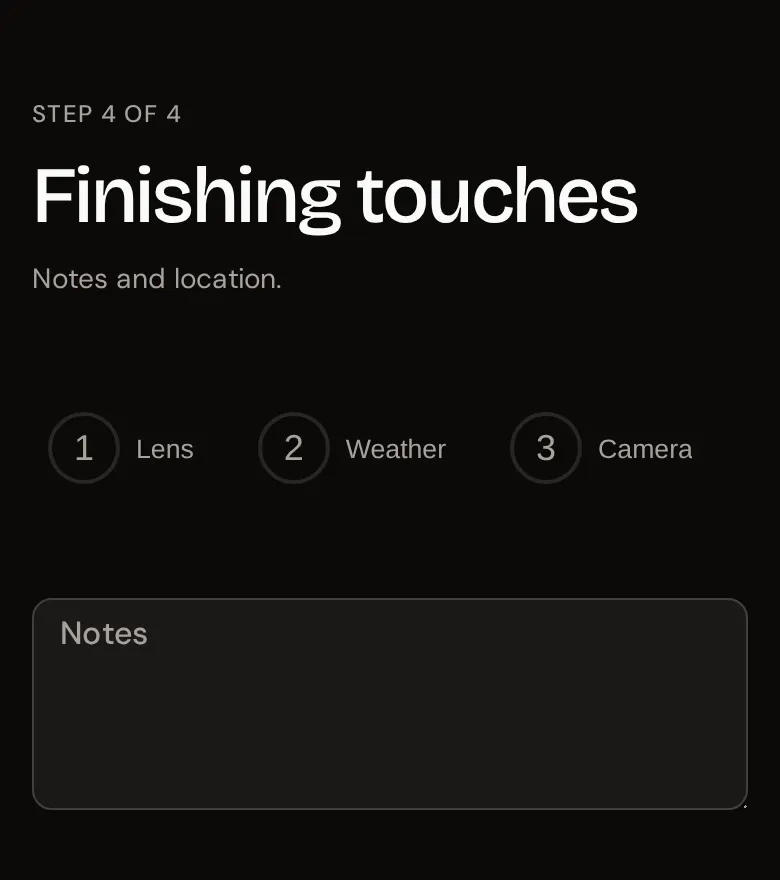
Step 4 - Finishing touches. Add any Notes (the subject, what you were trying, what to tell the lab) and check the Location. rollnote tries to read your position automatically; see Location and maps.
Press Save frame at any point to save. The button is enabled as soon as you have picked a lens and a weather condition; everything else is optional. You are taken back to the shoot, and a Frame added message confirms it.
Frame numbers
Frames are numbered automatically in the order you log them: the next frame is always one more than the highest number on the roll. You cannot type a number yourself.
If you delete a frame, the frames after it are renumbered so the roll always runs 1, 2, 3 and so on without gaps. If a frame number matters to you (for example to match your negatives), note it in the frame’s notes as well.
View a frame
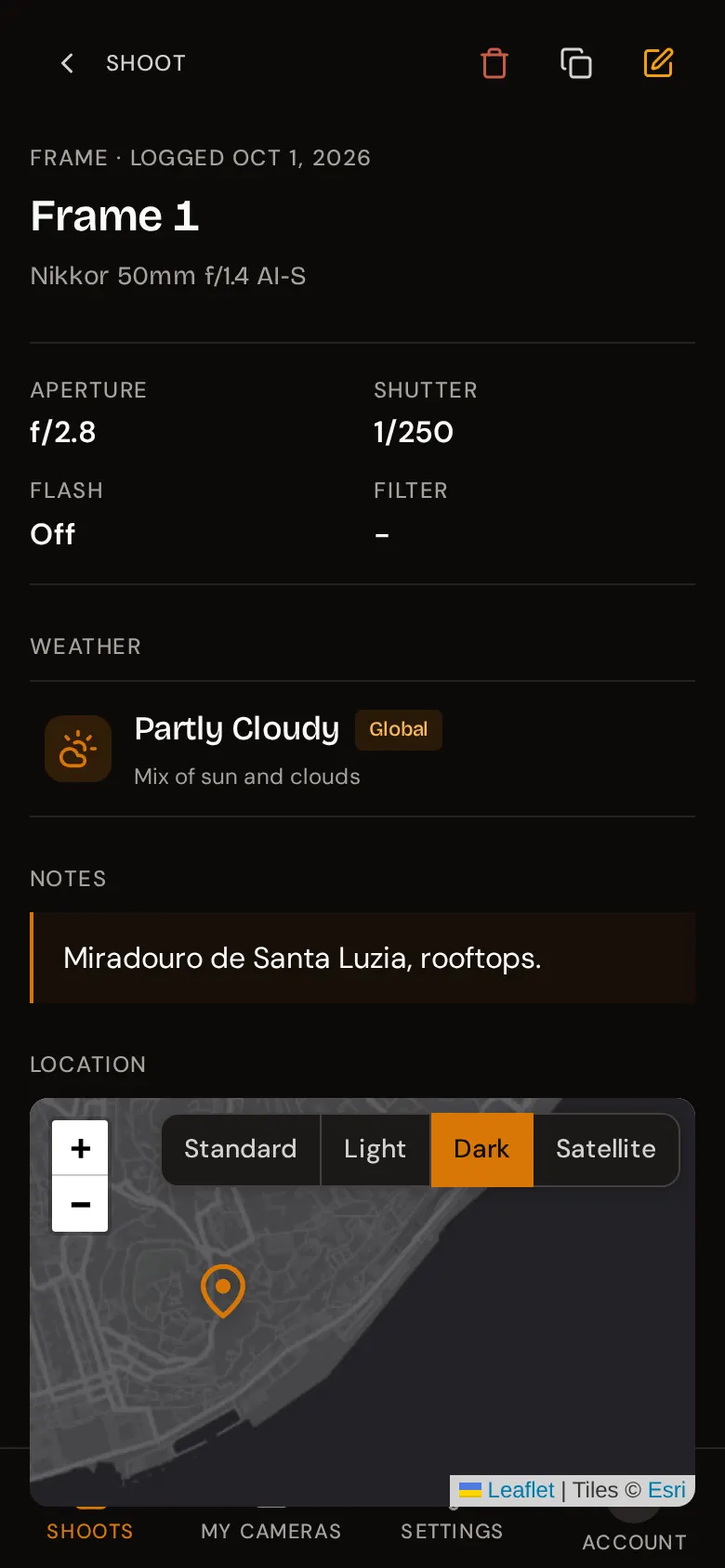
Tap a frame on the shoot page to open it. You will see:
- the date it was logged and the lens used;
- Aperture, Shutter, Flash, and Filter (with its exposure compensation). Anything not set shows a dash;
- the Weather condition;
- your Notes;
- the Location on a map, with its label;
- the Lens and Filter details.
Sections with nothing in them are hidden. The Shoot button at the top takes you back to the roll.
On the shoot page, each frame card shows its number with the aperture and shutter speed underneath, for example f/2.8 · 1/250, or No exposure if neither was set. A bulb exposure shows as B.
Edit a frame
Open the frame and press the pencil icon. The form shows the aperture and shutter dials, Lens, Weather, Filter, Notes, Flash, and Location. Change what you need and press Save (or Cancel to discard).
A few things can be changed but not removed from this form: once a frame has a location or a filter, you can pick a different one but not clear it. If you need a frame without them, delete it and log it again.
Duplicate a frame
Shooting a series with the same settings? Press the copy icon on a frame card, or on the frame page. rollnote creates a new frame at the end of the roll with the same aperture, shutter speed, bulb, flash, lens, weather, filter, notes, and location. Then open the copy and adjust whatever changed.
Duplicating is not available on a done shoot.
Delete a frame
Open the frame, press the red trash icon, and confirm. The frame and its location are deleted and the remaining frames are renumbered. There is no undo.
Clear all frames
To empty a roll without deleting the shoot itself, press Clear all next to Add frame on the shoot page and confirm. Every frame on the roll is deleted; the shoot, its settings, and its notes are kept. There is no undo.
Clear all only appears when the shoot has frames and is not marked done.