Account and security
Open Account from the tab bar on a phone, or click your name at the bottom of the sidebar on a desktop.
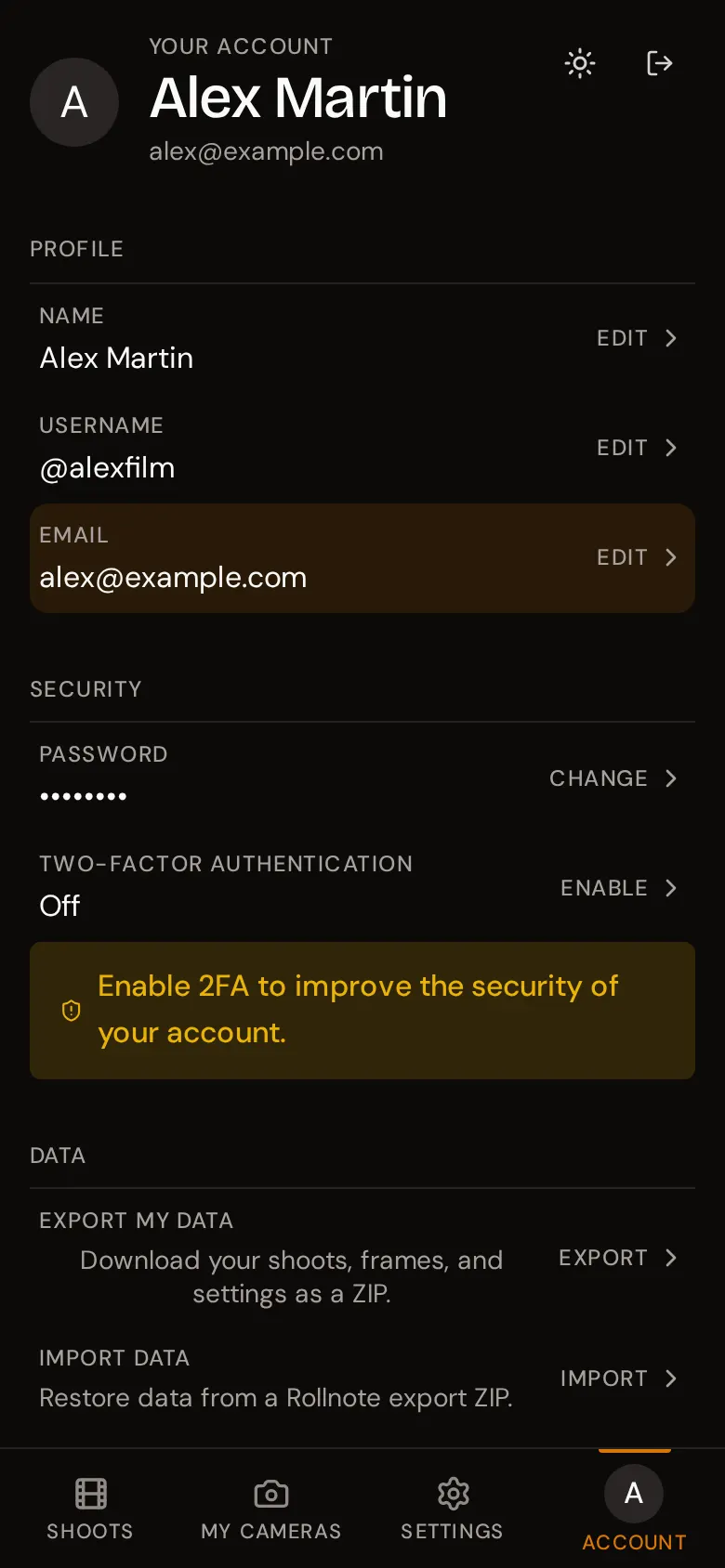
Profile
The Profile section shows your name, username, and email.
- Username - press Edit, change it, and press Save. You sign in with your new username from then on. It must be 3 to 30 characters: letters, digits, underscores, and dots.
- Email and Name cannot currently be changed after sign-up.
Password
Press Change next to Password, then enter your Current password and your New password twice. The new password must be 8 to 128 characters.
Changing your password does not sign out your other devices.
There is currently no “forgot password” link on the sign-in page. Keep your password in a password manager, and consider adding a passkey as a second way in.
Two-factor authentication
Two-factor authentication (2FA) asks for a six-digit code after your password, so a stolen password alone is not enough to get into your account. Until it is on, the Account page shows a reminder: Enable 2FA to improve the security of your account.
Turn it on
- Next to Two-factor authentication, press Enable.
- Enter your password and press Continue.
- Scan the QR code with an authenticator app (Google Authenticator, Authy, 1Password, Bitwarden, and so on). If you can’t scan it, type the code shown under Or enter this code manually into the app instead.
- Press I’ve scanned it, enter the six-digit code your app shows, and press Confirm.
The row now reads Enabled.
Signing in with 2FA
After your username and password, rollnote asks for a code:
- Type the six-digit code from your authenticator app and press Verify.
- No phone to hand? Press Send code by email instead. A code arrives by email (subject Your rollnote two-factor code) and is valid for 5 minutes. Press Use authenticator app instead to switch back.
rollnote does not issue backup codes. The email code is your fallback if you lose your authenticator app, so make sure you can still read the email address on your account.
Turn it off
Press Manage next to Two-factor authentication, enter your password, and press Disable.
Passkeys
A passkey lets you sign in with your fingerprint, face, or device PIN instead of a password. It also skips the two-factor step, because the passkey is already tied to your device.
The Passkeys row only appears on devices and browsers that support them.
Add a passkey
- Press Manage next to Passkeys.
- Enter a Device name so you can recognise it later (for example iPhone or Work laptop, up to 64 characters).
- Press Add passkey and follow your device’s prompt.
Each device needs its own passkey; add one on every phone or computer you use.
After you sign in with a password on a device that supports passkeys and has none yet, rollnote offers to set one up: Skip the password next time? Press Set up biometric login to add one, or Not now. Tick Don’t ask me again on this device to stop the reminder.
Sign in with a passkey
On the sign-in page, press Sign in with passkey. Many browsers also suggest your passkey as soon as you click the username field.
Remove a passkey
Open Passkeys, press remove next to the device, and confirm. You can no longer sign in with it on that device.
Theme
rollnote has a light and a dark theme. By default it follows your device’s setting. Press the sun or moon icon (at the top of the Account page, or next to your name in the desktop sidebar) to switch. Your choice is remembered on that device.
Sign out
Press the sign-out icon at the top right of the Account page. You are taken back to the sign-in page.
Delete your account
At the bottom of the Account page, under Danger zone, press Delete.
- Enter your password and press Delete account.
- Confirm in the Delete account permanently? window by pressing Delete forever.
This erases immediately and permanently:
- your account, sign-in sessions, passkeys, and two-factor settings;
- all your shoots, frames, and frame locations;
- your folders, cameras, lenses, and filters;
- any films, weather conditions, ISO values, and formats you added yourself.
The built-in presets are not affected. There is no grace period and no way to undo it, so export your data first if you might want it back.