User guide
rollnote mirrors how film actually works: you load a roll, log each frame as you shoot it, and review everything once the negatives come back from the lab. This guide covers the app at app.roll-note.com and any self-hosted instance - they behave the same.
New to rollnote? Start with Getting started, which takes you from sign-up to your first logged frame in a few minutes.
How rollnote is organised
| Concept | What it is | Where |
|---|---|---|
| Shoot | One roll of film: its name, film stock, ISO, camera, format, and notes. | Shoots tab |
| Frame | One exposure on that roll: lens, weather, aperture, shutter speed, filter, flash, notes, and location. | Inside a shoot |
| Folder | An optional, colour-coded group of shoots. | Shoots tab |
| Camera | A camera body, optionally tied to a film format. | My cameras tab |
| Equipment and presets | Lenses, filters, films, weather conditions, ISO values, and film formats. | Settings tab |
| Account | Profile, password, two-factor authentication, passkeys, data export and import, account deletion. | Account |
Everything you log is private to your account. There is no social feed, no public profile, and no sharing - rollnote is a notebook, not a network.
Global and personal items
Some lists come pre-filled so you can start logging straight away:
- Global items are shared presets that ship with rollnote: around 50 film stocks (Kodak, Ilford, Fujifilm, CineStill, Lomography, and more), 15 weather conditions, the common ISO values from 6 to 12800, and the usual film formats (135, 120, 4x5, 8x10, 110, 127, 220, 5x7, 9x12). They carry a Global tag and cannot be edited or deleted.
- Personal items are the ones you add yourself. Lenses, filters, cameras, and folders are always personal. You can also add your own films, weather conditions, ISO values, and formats when the presets don’t cover what you use.
See Equipment library for the details of each list.
Finding your way around
On a phone (or any window narrower than 1024 pixels), a tab bar at the bottom gives you Shoots, My cameras, Settings, and Account. Forms slide up from the bottom of the screen.
On a desktop, the same sections live in a sidebar on the left, with your name and the light/dark theme switch at the bottom. Forms open in a panel on the right.
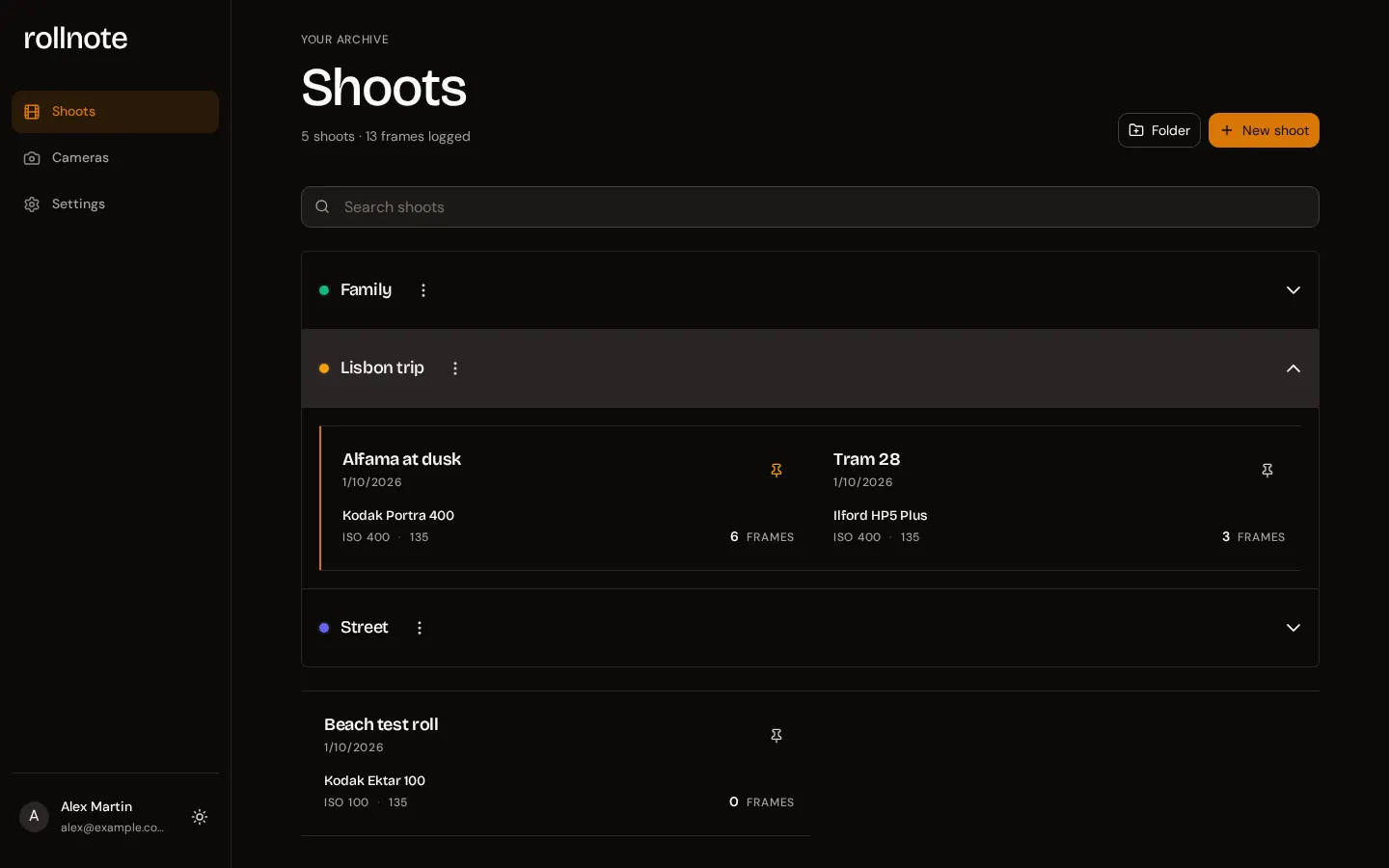
Opening the app always takes you to your shoots. If your session has expired, you are sent to the sign-in page and brought back to where you were afterwards.
In this guide
- Getting started - create an account, log your first roll, install the app on your phone.
- Shoots and folders - create, pin, finish, search, and organise your rolls.
- Logging frames - the four-step frame wizard, editing, duplicating, and deleting frames.
- Exposure dials - setting aperture and shutter speed, bulb, and precision mode.
- Location and maps - recording where each frame was taken.
- Equipment library - cameras, lenses, filters, films, weather, ISO values, and formats.
- Account and security - profile, password, two-factor authentication, passkeys, theme, and deleting your account.
- Import and export - backing up your data and moving it between instances.