Getting started
This page takes you from a brand-new account to your first logged frame. It should take about five minutes.
Create your account
- Open app.roll-note.com/register (or
/registeron your own instance). - Fill in:
- Name - how you want to be addressed in the app.
- Username - what you sign in with. 3 to 30 characters; letters, digits, underscores, and dots only.
- Email - used to verify your account and, optionally, to receive two-factor codes.
- Password and Confirm password - 8 to 128 characters. A strength meter shows how solid your choice is.
- Tick I have read and accept the privacy policy and legal notice. Both documents open in a new tab if you want to read them first.
- Press Create account.
You will see Check your inbox. rollnote sends a verification email with the subject Verify your rollnote account. Open it and press Verify email address; you land on the sign-in page, ready to go.
You cannot sign in until your email is verified. If the message doesn’t arrive, check your spam folder.
The confirmation message is the same whether or not the email is already registered. This is deliberate: it stops anyone from using the sign-up form to find out who has an account.
Sign in
Sign in at /login with your username (not your email) and password.
- Remember me keeps you signed in after you close the browser. Sessions last seven days and renew themselves while you keep using the app.
- If you have set up a passkey, use Sign in with passkey instead, or pick the passkey your browser suggests in the username field.
- If two-factor authentication is on, you are asked for a six-digit code next. See Account and security.
After five failed attempts in a minute, sign-in is paused briefly to slow down password guessing. Wait a minute and try again.
Your first roll, start to finish
1. Add your camera (optional but recommended). Go to My cameras, press New camera, type its name (for example Nikon FM2), and pick its format (135 for 35mm). See Cameras.
2. Add your lenses. Go to Settings > Lenses and press Add for each lens you shoot with. A frame needs a lens, so add at least one. You can also add lenses on the fly while logging a frame.
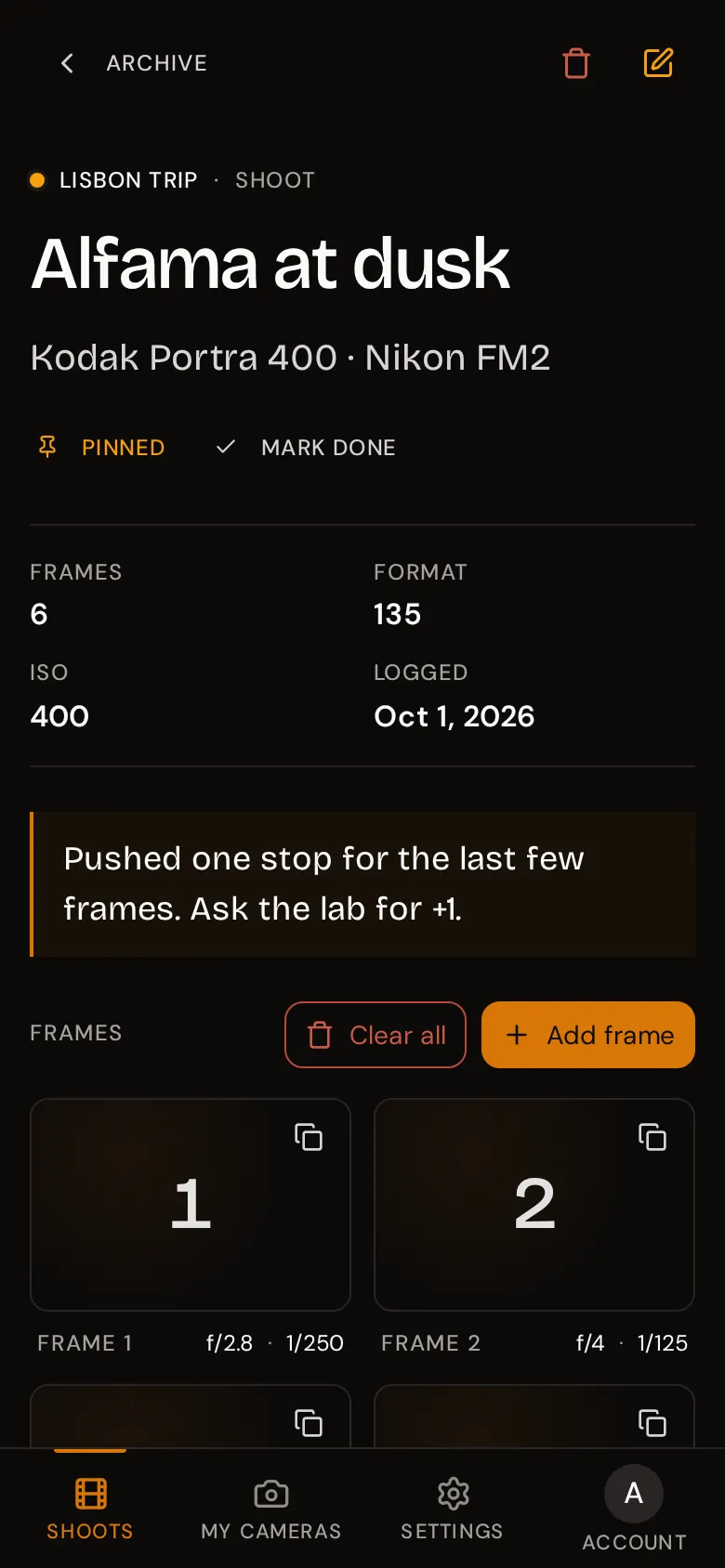
3. Create the shoot when you load the roll. On the Shoots tab, press New shoot. Give it a name, then pick the film, ISO, camera, and format. All of those are optional except the name. See Shoots and folders.
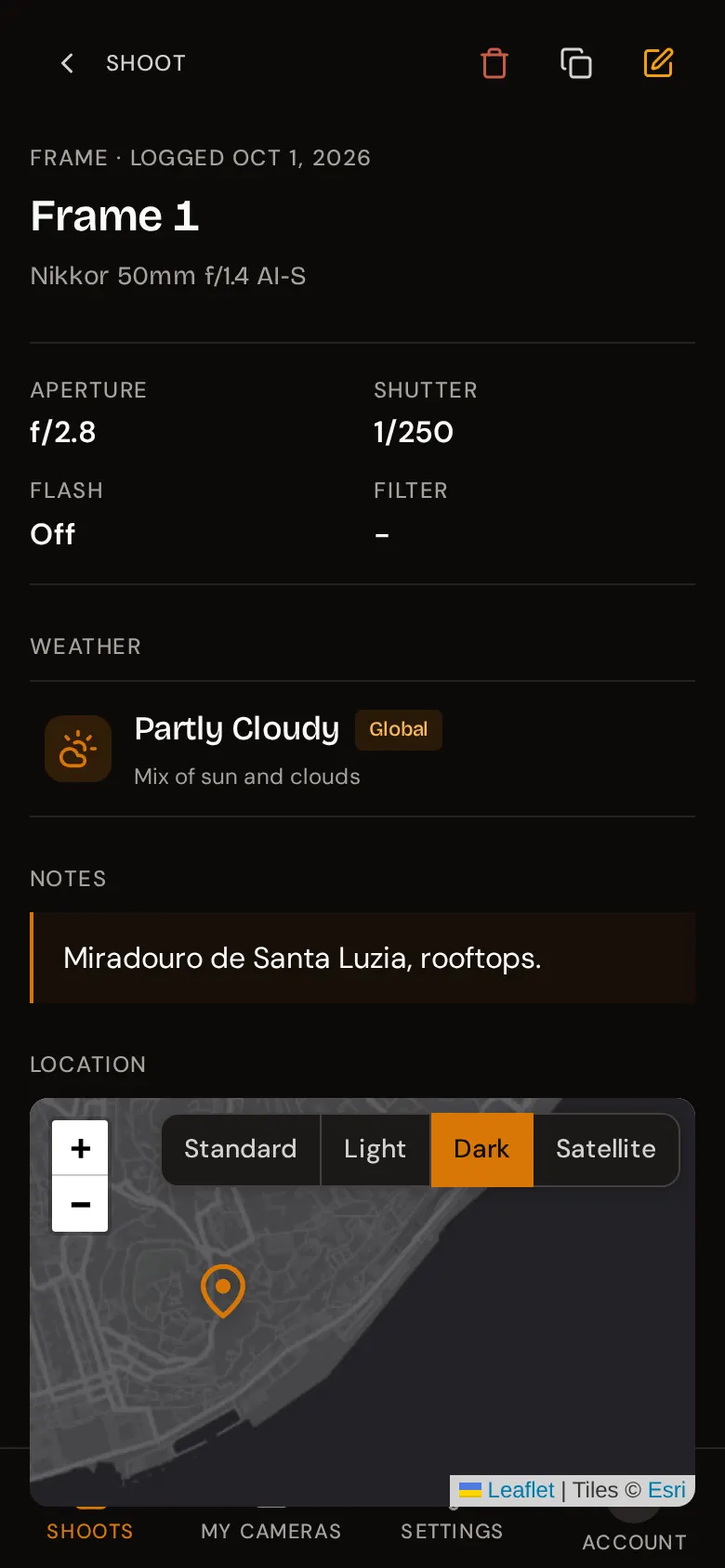
4. Log each frame as you shoot. Open the shoot and press Add frame. The wizard asks for the lens and the weather, then the exposure, then notes and location. Only the lens and weather are required, so a frame can take as little as two taps. See Logging frames.
5. Mark the roll done when it’s finished. On the shoot page, press Mark done. The shoot gets a green check in your list and no more frames can be added by mistake. You can unmark it at any time.
6. Review when the negatives come back. Open the shoot and go through the frames: every aperture, shutter speed, lens, filter, and note is where you left it, so you can compare your notes with the results.
Install rollnote on your phone
rollnote is a web app, but you can install it to your home screen so it opens full-screen like a native app:
- iPhone and iPad (Safari): tap the share button, then Add to Home Screen.
- Android (Chrome): open the browser menu and tap Install app (or Add to Home screen).
- Desktop (Chrome, Edge): click the install icon at the right of the address bar.
The installed app still needs an internet connection: your shoots and frames live on the server, not on the device, so they cannot be viewed or edited offline.
What’s new
When rollnote is updated, a What’s new window lists the changes the next time you open the app. Press Got it to close it, or See all to read the full history. You can come back to it any time from Account > What’s new.