Import and export
Your data is yours. You can download all of it at any time, keep it as a backup, read it with your own tools, or import it into another rollnote instance - for example when moving from roll-note.com to a self-hosted server.
Both live in the Data section of the Account page.
Export your data
- Go to Account and press Export next to Export my data.
- Press Export as ZIP.
Your browser downloads a file named rollnote-export-YYYY-MM-DD.zip. It contains:
- all your shoots, frames, and frame locations;
- your cameras, lenses, filters, and folders;
- the films, ISO values, film formats, and weather conditions you created, plus any built-in ones that your shoots and frames use.
It does not contain your password, sign-in sessions, two-factor settings, or passkeys.
Exports are generated on the spot and include everything up to that moment. Even very large archives export fine.
What’s inside the ZIP
The ZIP holds a single file, data.json. It is plain JSON, so you can open it in
any text editor or process it with a script. The top-level keys are:
| Key | Contains |
|---|---|
user | Your name, email, and username. |
shoots | One entry per shoot. |
frames | One entry per frame, linked to its shoot. |
frameLocations | The location of each frame that has one. |
cameras, lenses, filters, folders | Your equipment and folders. |
films, isos, filmFormats, weathers | Presets, yours and the built-in ones you use. |
meta | The export format version, the export date, your account ID, and item counts. |
Items refer to each other by ID: a frame’s shoot field holds the ID of its
shoot, a shoot’s film field the ID of its film, and so on. Shutter speeds are
stored in seconds (0.004 is 1/250), with a separate bulb flag.
Import data
Importing reads a rollnote export ZIP and adds its contents to your account. Press Import next to Import data on the Account page. The import window has four steps.
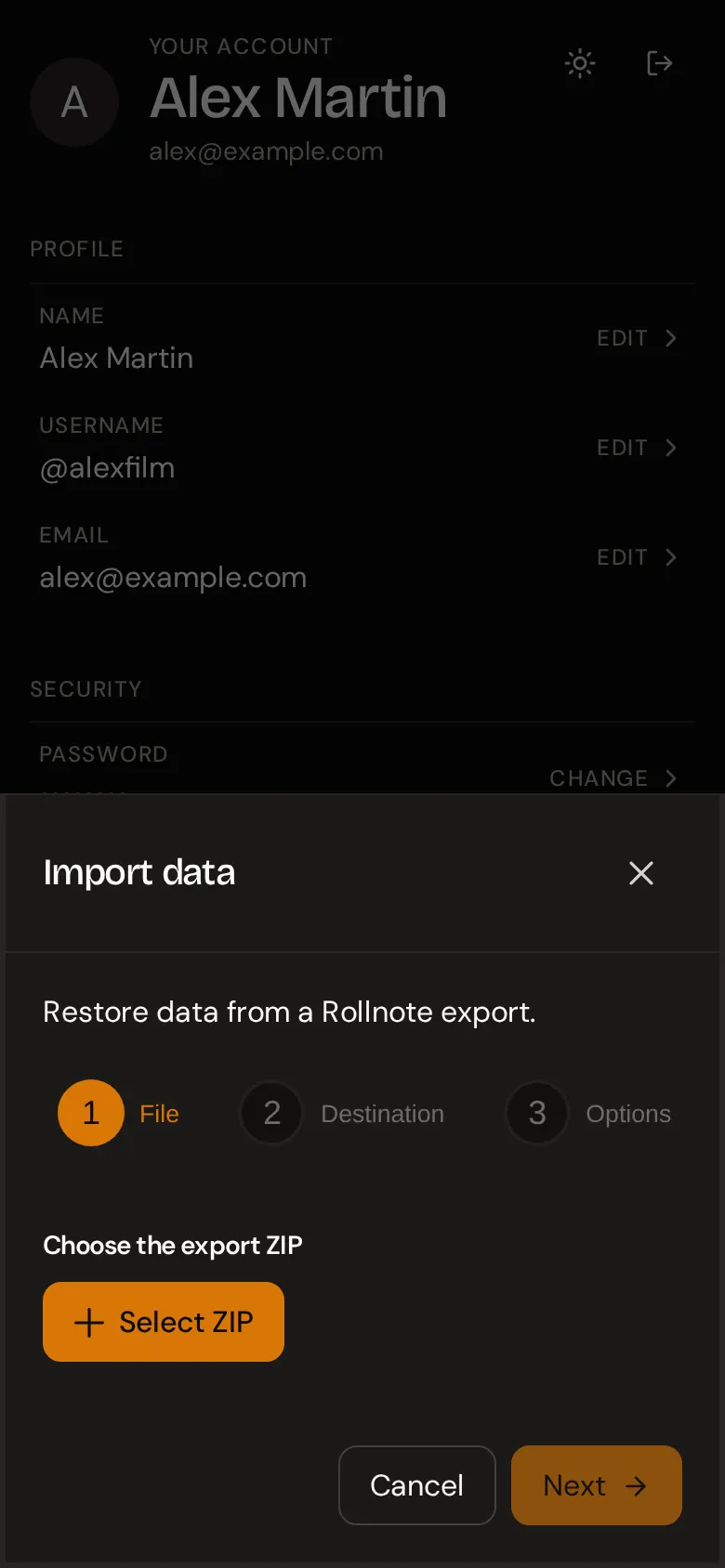
1. File. Press Select ZIP and choose an export file. Press Replace to pick a different one.
2. Destination. Choose Use my current account: the imported data is added to the account you are signed in with.
3. Options.
- Reuse settings with the same name (the default): cameras, lenses, filters, folders, and film formats whose name matches one you already have are reused instead of created twice.
- Duplicate everything: those five are always created as new items, even if you already have one with the same name.
- Delete existing data before importing (off by default): deletes your current shoots, frames, folders, and equipment first, so the account ends up containing only what is in the file. Your account itself, password, and security settings are kept.
Whichever option you choose, films, ISO values, and weather conditions are always matched by name (or value) when one already exists, built-in ones included.
4. Review. rollnote checks the file and shows what will happen: who exported it and when, how many shoots, frames, and locations it contains, and for each kind of equipment how many items are new and how many will be reused. Any problems are listed here. Press Import to go ahead.
When it is done, Import complete shows how many shoots and frames were added. Reload the Shoots page if they don’t appear straight away.
What to expect from an import
- All or nothing. The import, including the optional deletion beforehand, runs as a single operation. If anything fails, nothing is changed.
- Importing twice duplicates. Shoots and frames are never matched against existing ones, so importing the same file twice gives you every shoot twice. Use Delete existing data before importing to replace instead of add.
- Not restored: pinned and done states, and the original creation dates. Imported shoots and frames are dated from the moment of the import, which also affects their order in your list.
- Restored as-is: names, notes, settings, frame numbers, and locations.
- Older exports work. Files from earlier versions of rollnote are converted automatically. Photo attachments from very old exports (rollnote no longer stores photos) are skipped.
Limits
- The ZIP can be up to 25 MB, and the
data.jsoninside it up to 64 MB. - The ZIP must have been produced by rollnote’s export.
Import errors
| Message | Meaning |
|---|---|
| ZIP is missing data.json - was this produced by rollnote export? | The file is not a rollnote export, or was repacked without data.json at its root. |
| Unsupported export version | The export comes from a newer rollnote than the one you are importing into. Update the instance first. |
| data.json is missing the rollnote meta block | The meta key was removed or the file was edited by hand. |
| Import data is malformed | The JSON doesn’t match the expected format; the rest of the message says where. |