Location and maps
Each frame can store one location: a point on the map and an optional label such as Cais das Colunas. It is entirely optional.
Automatic location
When you reach the last step of the frame wizard, rollnote asks your device for its current position. The first time, your browser asks for permission to use your location; allow it if you want automatic capture.
While it works, the field shows Detecting location…. Once it has a fix, it shows Location captured with the coordinates, and a small map preview. The position is saved with the frame when you press Save frame.
Add a Location label to name the place. The label is free text and is shown on the frame’s map.
Automatic capture only happens when you create a frame. Editing an existing frame never replaces its location unless you choose a new one yourself.
Pick or adjust the location on a map
Press Pick on map (or Refine on map if a position was already captured) to open the Pick a location window.
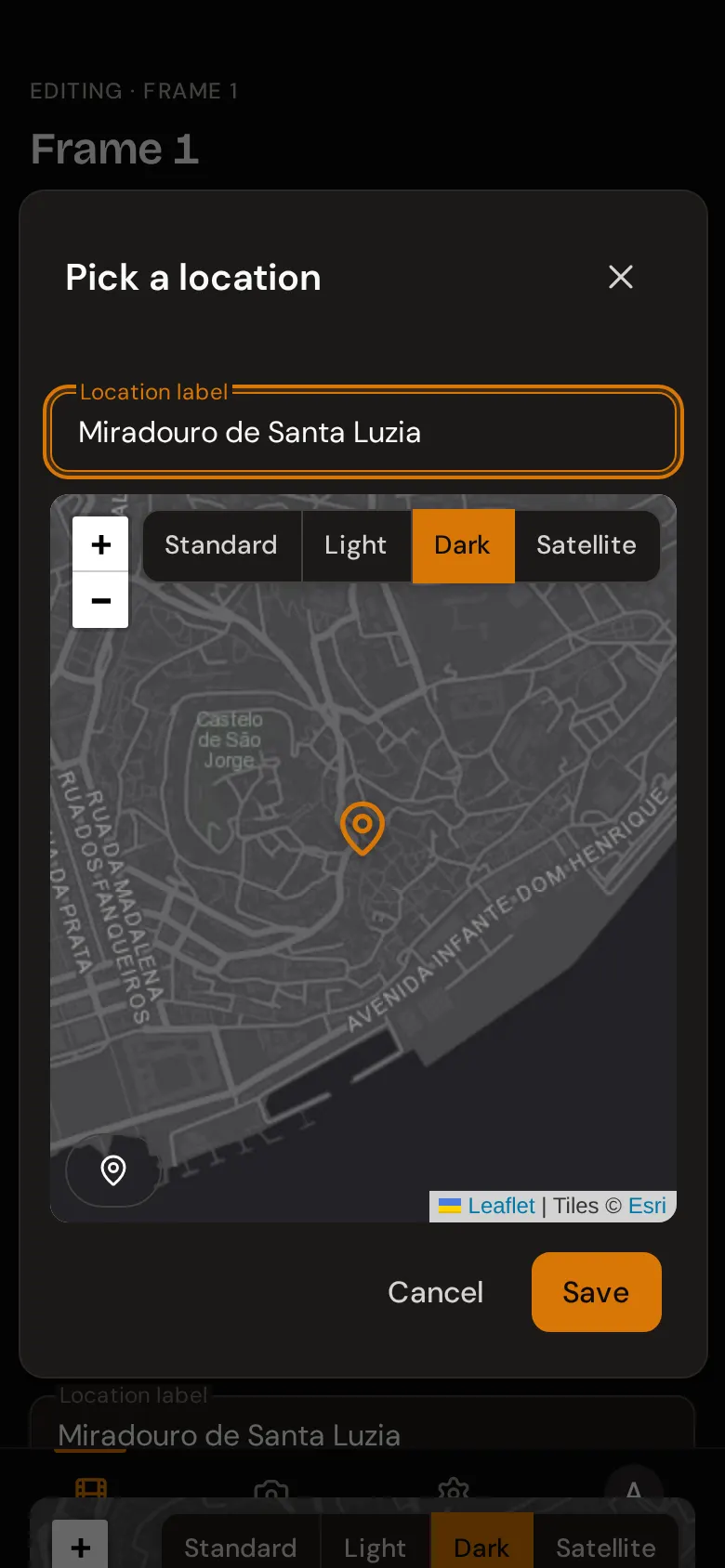
- The pin stays fixed in the centre of the map. Move the map underneath it until the pin is on the right spot, and zoom with the + and - buttons or by pinching.
- The round button in the corner, Use my current location, re-centres the map on where you are now.
- Type a Location label if you want one.
- Press Save to keep the new position, or Cancel to leave it as it was.
When nothing has been captured yet, the map opens on Paris until it finds your position.
Coordinates picked on the map replace the automatic ones. Only the latitude and longitude are kept; the GPS accuracy and altitude recorded by automatic capture are dropped, since they no longer describe the chosen point.
Map styles
Every map has a style switch in its top corner:
| Style | Looks like |
|---|---|
| Standard | The classic OpenStreetMap street map. |
| Light | A pale, low-contrast map. |
| Dark | A dark map, chosen by default when the app is in dark mode. |
| Satellite | Aerial imagery. |
When location doesn’t work
| Message | What it means | What to do |
|---|---|---|
| Location access denied | You (or your browser) blocked location for rollnote. | Allow location for the site in your browser settings, then press Retry. On a phone, also check that the browser itself is allowed to use location in the system settings. |
| Location unavailable | The device couldn’t get a fix. | Step outside or turn Wi-Fi on (it helps positioning, even without a connection), then press Retry. |
| Location lookup timed out | No fix within 15 seconds. | Press Retry, or pick the spot on the map instead. |
| This browser doesn’t support geolocation | The browser can’t report a position. | Pick the spot on the map. |
You can always save the frame without a location and add it later by editing the frame.
Location and privacy
- Your coordinates are stored with your frame on the rollnote server, like the rest of your data, and are only visible to you.
- To draw maps, your browser downloads map images directly from OpenStreetMap (Standard style) and Esri (Light, Dark, and Satellite styles). Those services see your IP address and the area of the map you are viewing, as with any online map.
- Locations are included when you export your data.